![[Seedance 1.5 Pro] A woman is walking at beach](https://media.ulazai.com/prompt_thumbnails/2026/04/thumb_21a0f75d-0dcb-4031-8198-2276ba7bcf4e.jpg) [Seedance 1.5 Pro] A woman is walking at beach
A woman is walking at beach
[Seedance 1.5 Pro] A woman is walking at beach
A woman is walking at beach
AI video prompts, with the videos they made
Browse 1945+ community prompts for Seedance 2, Veo 3.1, Sora 2, Kling 3.0, Grok, Wan, and Hailuo. Open one to see the model and settings behind the video, then recreate it in Video Studio. For a focused starting point, browse the Veo 3 prompt examples.
23 results · Clear filters
[Seedance 1.5 Pro] A woman is walking at beach
A woman is walking at beach
![[Seedance 1.5 Pro] “Bride and groom practicing their first dance in a dance studio, wearing casual training clothes (sweatpants, leggings), professional dance instructor guiding t](https://media.ulazai.com/prompt_thumbnails/2026/04/thumb_881f4d33-156b-47a7-bd3d-88104fbea438.jpg) [Seedance 1.5 Pro] “Bride and groom practicing their first dance in a dance studio, wearing casual training clothes (sweatpants, leggings), professional dance instructor guiding t
“Bride and groom practicing their first dance in a dance studio, wearing casual training clothes (sweatpants, leggings), professional dance instructor guiding them, …
[Seedance 1.5 Pro] “Bride and groom practicing their first dance in a dance studio, wearing casual training clothes (sweatpants, leggings), professional dance instructor guiding t
“Bride and groom practicing their first dance in a dance studio, wearing casual training clothes (sweatpants, leggings), professional dance instructor guiding them, …
![[Seedance 1.5 Pro] Black people driving through the ghetto or hood listening to hip hop trap music.](https://media.ulazai.com/prompt_thumbnails/2026/06/thumb_c4069c4c-8d7d-47b5-bd19-0fa60fc88f7d.jpg) [Seedance 1.5 Pro] Black people driving through the ghetto or hood listening to hip hop trap music.
Black people driving through the ghetto or hood listening to hip hop trap music.
[Seedance 1.5 Pro] Black people driving through the ghetto or hood listening to hip hop trap music.
Black people driving through the ghetto or hood listening to hip hop trap music.
![[Seedance 1.5 Pro] [Camera]: slow crane down and pan right, sinking deeper into the magical, floating atmosphere. [Action]: soft plush sheep bound in slow, gravity-defying arcs, m](https://media.ulazai.com/prompt_thumbnails/2026/06/thumb_038de5cf-22ab-426b-90a3-6468a43703a7.jpg) [Seedance 1.5 Pro] [Camera]: slow crane down and pan right, sinking deeper into the magical, floating atmosphere. [Action]: soft plush sheep bound in slow, gravity-defying arcs, m
[Camera]: slow crane down and pan right, sinking deeper into the magical, floating atmosphere. [Action]: soft plush sheep bound in slow, gravity-defying …
[Seedance 1.5 Pro] [Camera]: slow crane down and pan right, sinking deeper into the magical, floating atmosphere. [Action]: soft plush sheep bound in slow, gravity-defying arcs, m
[Camera]: slow crane down and pan right, sinking deeper into the magical, floating atmosphere. [Action]: soft plush sheep bound in slow, gravity-defying …
![[Seedance 1.5 Pro] [Camera]: slow push in and a slight tilt up to emphasize the tranquil and sleepy perspective. [Action]: the character blinks slowly with heavy eyelids, eyes mov](https://media.ulazai.com/prompt_thumbnails/2026/06/thumb_f19dbc8c-da0e-4fd8-adff-de697eb5845c.jpg) [Seedance 1.5 Pro] [Camera]: slow push in and a slight tilt up to emphasize the tranquil and sleepy perspective. [Action]: the character blinks slowly with heavy eyelids, eyes mov
[Camera]: slow push in and a slight tilt up to emphasize the tranquil and sleepy perspective. [Action]: the character blinks slowly with …
[Seedance 1.5 Pro] [Camera]: slow push in and a slight tilt up to emphasize the tranquil and sleepy perspective. [Action]: the character blinks slowly with heavy eyelids, eyes mov
[Camera]: slow push in and a slight tilt up to emphasize the tranquil and sleepy perspective. [Action]: the character blinks slowly with …
![[Seedance 1.5 Pro] Scene 1 – Alone, Normal Start • Background: Dark living room, TV flickering, lamp dim • Action: Alex scrolls phone or watches TV, unaware • Sound: Soft creaks,](https://media.ulazai.com/prompt_thumbnails/2026/06/thumb_b3606080-e24f-4aee-aa1b-e7abdc2c179c.jpg) [Seedance 1.5 Pro] Scene 1 – Alone, Normal Start • Background: Dark living room, TV flickering, lamp dim • Action: Alex scrolls phone or watches TV, unaware • Sound: Soft creaks,
Scene 1 – Alone, Normal Start • Background: Dark living room, TV flickering, lamp dim • Action: Alex scrolls phone or watches …
[Seedance 1.5 Pro] Scene 1 – Alone, Normal Start • Background: Dark living room, TV flickering, lamp dim • Action: Alex scrolls phone or watches TV, unaware • Sound: Soft creaks,
Scene 1 – Alone, Normal Start • Background: Dark living room, TV flickering, lamp dim • Action: Alex scrolls phone or watches …
![[Seedance 1.5 Pro] Funny scene of a biker pushing his motorcycle on the road because the petrol pump has no fuel. The biker looks tired and frustrated. Busy Bangladeshi street, da](https://media.ulazai.com/prompt_thumbnails/2026/03/thumb_26ce19cb-1f3e-4e88-9804-54a2a94c85d1.jpg) [Seedance 1.5 Pro] Funny scene of a biker pushing his motorcycle on the road because the petrol pump has no fuel. The biker looks tired and frustrated. Busy Bangladeshi street, da
Funny scene of a biker pushing his motorcycle on the road because the petrol pump has no fuel. The biker looks tired …
[Seedance 1.5 Pro] Funny scene of a biker pushing his motorcycle on the road because the petrol pump has no fuel. The biker looks tired and frustrated. Busy Bangladeshi street, da
Funny scene of a biker pushing his motorcycle on the road because the petrol pump has no fuel. The biker looks tired …
![[Seedance 1.5 Pro] At a petrol pump in Bangladesh, a biker asks the worker for fuel but the worker shakes his head and shows there is no fuel. The biker looks surprised and confus](https://media.ulazai.com/prompt_thumbnails/2026/03/thumb_5587bd34-faf3-440d-8f11-c0b028d7b3fc.jpg) [Seedance 1.5 Pro] At a petrol pump in Bangladesh, a biker asks the worker for fuel but the worker shakes his head and shows there is no fuel. The biker looks surprised and confus
At a petrol pump in Bangladesh, a biker asks the worker for fuel but the worker shakes his head and shows there …
[Seedance 1.5 Pro] At a petrol pump in Bangladesh, a biker asks the worker for fuel but the worker shakes his head and shows there is no fuel. The biker looks surprised and confus
At a petrol pump in Bangladesh, a biker asks the worker for fuel but the worker shakes his head and shows there …
![[Seedance 1.5 Pro] Realistic moto vlog scene in Bangladesh. A young biker wearing a helmet arrives at a small petrol pump with his motorcycle. Busy street environment, daylight, c](https://media.ulazai.com/prompt_thumbnails/2026/03/thumb_c8bd055f-654c-45d5-985a-f97473056687.jpg) [Seedance 1.5 Pro] Realistic moto vlog scene in Bangladesh. A young biker wearing a helmet arrives at a small petrol pump with his motorcycle. Busy street environment, daylight, c
Realistic moto vlog scene in Bangladesh. A young biker wearing a helmet arrives at a small petrol pump with his motorcycle. Busy …
[Seedance 1.5 Pro] Realistic moto vlog scene in Bangladesh. A young biker wearing a helmet arrives at a small petrol pump with his motorcycle. Busy street environment, daylight, c
Realistic moto vlog scene in Bangladesh. A young biker wearing a helmet arrives at a small petrol pump with his motorcycle. Busy …
![[Seedance 1.5 Pro] Crear un video hiperrealista basado en la imagen de referencia dentro de la sección de carnes de un supermercado. La escena inicia con la cámara acercándose len](https://media.ulazai.com/prompt_thumbnails/2026/03/thumb_9658b117-6d69-4ce0-a9ac-b486ee92e2f9.jpg) [Seedance 1.5 Pro] Crear un video hiperrealista basado en la imagen de referencia dentro de la sección de carnes de un supermercado. La escena inicia con la cámara acercándose len
Crear un video hiperrealista basado en la imagen de referencia dentro de la sección de carnes de un supermercado. La escena inicia …
[Seedance 1.5 Pro] Crear un video hiperrealista basado en la imagen de referencia dentro de la sección de carnes de un supermercado. La escena inicia con la cámara acercándose len
Crear un video hiperrealista basado en la imagen de referencia dentro de la sección de carnes de un supermercado. La escena inicia …
![[Seedance 1.5 Pro] A hyper-detailed 4K CGI technical deconstruction animation of the X-Layer MagHeat 5.000. Starting from the angled perspective of the device, the matte black out](https://media.ulazai.com/prompt_thumbnails/2026/03/thumb_6f737cc6-6683-46f0-acf0-bd1dbe3d4bf1.jpg) [Seedance 1.5 Pro] A hyper-detailed 4K CGI technical deconstruction animation of the X-Layer MagHeat 5.000. Starting from the angled perspective of the device, the matte black out
A hyper-detailed 4K CGI technical deconstruction animation of the X-Layer MagHeat 5.000. Starting from the angled perspective of the device, the matte …
[Seedance 1.5 Pro] A hyper-detailed 4K CGI technical deconstruction animation of the X-Layer MagHeat 5.000. Starting from the angled perspective of the device, the matte black out
A hyper-detailed 4K CGI technical deconstruction animation of the X-Layer MagHeat 5.000. Starting from the angled perspective of the device, the matte …
![[Seedance 1.5 Pro] close-up of a teenage boy's hands reaching to pick up a smartphone from a chair in a dimly lit room, cold cinematic lighting, muted colors, realistic skin textu](https://media.ulazai.com/prompt_thumbnails/2026/03/thumb_3ea1622d-0baa-4a56-8183-18b5ee88add7.jpg) [Seedance 1.5 Pro] close-up of a teenage boy's hands reaching to pick up a smartphone from a chair in a dimly lit room, cold cinematic lighting, muted colors, realistic skin textu
close-up of a teenage boy's hands reaching to pick up a smartphone from a chair in a dimly lit room, cold cinematic …
[Seedance 1.5 Pro] close-up of a teenage boy's hands reaching to pick up a smartphone from a chair in a dimly lit room, cold cinematic lighting, muted colors, realistic skin textu
close-up of a teenage boy's hands reaching to pick up a smartphone from a chair in a dimly lit room, cold cinematic …
![[Seedance 1.5 Pro] teenage boy slowly entering a small dim bedroom and sitting down at a desk, cold evening light coming from the window, quiet atmosphere, subtle movement, realis](https://media.ulazai.com/prompt_thumbnails/2026/03/thumb_111d9dbf-f77f-406d-8707-684185f4ef99.jpg) [Seedance 1.5 Pro] teenage boy slowly entering a small dim bedroom and sitting down at a desk, cold evening light coming from the window, quiet atmosphere, subtle movement, realis
teenage boy slowly entering a small dim bedroom and sitting down at a desk, cold evening light coming from the window, quiet …
[Seedance 1.5 Pro] teenage boy slowly entering a small dim bedroom and sitting down at a desk, cold evening light coming from the window, quiet atmosphere, subtle movement, realis
teenage boy slowly entering a small dim bedroom and sitting down at a desk, cold evening light coming from the window, quiet …
![[Seedance 1.5 Pro] close up of a smartphone glowing in a dark room, on the screen a confident muscular bearded man looking directly at camera, dramatic high contrast lighting, pow](https://media.ulazai.com/prompt_thumbnails/2026/03/thumb_045805ae-e5dc-4abe-b146-a9507a489d68.jpg) [Seedance 1.5 Pro] close up of a smartphone glowing in a dark room, on the screen a confident muscular bearded man looking directly at camera, dramatic high contrast lighting, pow
close up of a smartphone glowing in a dark room, on the screen a confident muscular bearded man looking directly at camera, …
[Seedance 1.5 Pro] close up of a smartphone glowing in a dark room, on the screen a confident muscular bearded man looking directly at camera, dramatic high contrast lighting, pow
close up of a smartphone glowing in a dark room, on the screen a confident muscular bearded man looking directly at camera, …
![[Seedance 1.5 Pro] 4 second ultra realistic cinematic boxing scene. Professional boxing ring with deep red canvas and white ropes. Dramatic overhead arena lighting, subtle haze in](https://media.ulazai.com/prompt_thumbnails/2026/03/thumb_3d321da4-0f44-45ed-9b24-a3528476fb81.jpg) [Seedance 1.5 Pro] 4 second ultra realistic cinematic boxing scene. Professional boxing ring with deep red canvas and white ropes. Dramatic overhead arena lighting, subtle haze in
4 second ultra realistic cinematic boxing scene. Professional boxing ring with deep red canvas and white ropes. Dramatic overhead arena lighting, subtle …
[Seedance 1.5 Pro] 4 second ultra realistic cinematic boxing scene. Professional boxing ring with deep red canvas and white ropes. Dramatic overhead arena lighting, subtle haze in
4 second ultra realistic cinematic boxing scene. Professional boxing ring with deep red canvas and white ropes. Dramatic overhead arena lighting, subtle …
![[Seedance 1.5 Pro] ONE OF THE NOTE OF THIS PERFUME IS CARAMEL CAN YOU MAKE CARAMEL DROPPING ON THIS PERFUNME BOTTLE REALISTICALLY/ THE CARAMEL MUST FALL FROM TOP FIRST IT MUST HIP](https://media.ulazai.com/prompt_thumbnails/2026/03/thumb_a776c371-8a12-411e-89cf-0a31ab5be0c6.jpg) [Seedance 1.5 Pro] ONE OF THE NOTE OF THIS PERFUME IS CARAMEL CAN YOU MAKE CARAMEL DROPPING ON THIS PERFUNME BOTTLE REALISTICALLY/ THE CARAMEL MUST FALL FROM TOP FIRST IT MUST HIP
ONE OF THE NOTE OF THIS PERFUME IS CARAMEL CAN YOU MAKE CARAMEL DROPPING ON THIS PERFUNME BOTTLE REALISTICALLY/ THE CARAMEL MUST …
[Seedance 1.5 Pro] ONE OF THE NOTE OF THIS PERFUME IS CARAMEL CAN YOU MAKE CARAMEL DROPPING ON THIS PERFUNME BOTTLE REALISTICALLY/ THE CARAMEL MUST FALL FROM TOP FIRST IT MUST HIP
ONE OF THE NOTE OF THIS PERFUME IS CARAMEL CAN YOU MAKE CARAMEL DROPPING ON THIS PERFUNME BOTTLE REALISTICALLY/ THE CARAMEL MUST …
![[Seedance 1.5 Pro] ONE OF THE NOTE OF THIS PERFUME IS CARAMEL CAN YOU MAKE CARAMEL DROPPING ON THIS PERFUNME BOTTLE REALISTICALLY](https://media.ulazai.com/prompt_thumbnails/2026/03/thumb_fcb3bdc7-2da2-411e-94a4-58f985c69118.jpg) [Seedance 1.5 Pro] ONE OF THE NOTE OF THIS PERFUME IS CARAMEL CAN YOU MAKE CARAMEL DROPPING ON THIS PERFUNME BOTTLE REALISTICALLY
ONE OF THE NOTE OF THIS PERFUME IS CARAMEL CAN YOU MAKE CARAMEL DROPPING ON THIS PERFUNME BOTTLE REALISTICALLY
[Seedance 1.5 Pro] ONE OF THE NOTE OF THIS PERFUME IS CARAMEL CAN YOU MAKE CARAMEL DROPPING ON THIS PERFUNME BOTTLE REALISTICALLY
ONE OF THE NOTE OF THIS PERFUME IS CARAMEL CAN YOU MAKE CARAMEL DROPPING ON THIS PERFUNME BOTTLE REALISTICALLY
![[Seedance 1.5 Pro] گرگ صورتی پشمالو واقعگرایانه](https://media.ulazai.com/prompt_thumbnails/2026/03/thumb_8e7f8e8b-91d9-4e85-b1d0-cc553196fc7f.jpg) [Seedance 1.5 Pro] گرگ صورتی پشمالو واقعگرایانه
گرگ صورتی پشمالو واقعگرایانه
[Seedance 1.5 Pro] گرگ صورتی پشمالو واقعگرایانه
گرگ صورتی پشمالو واقعگرایانه
![[Seedance 1.5 Pro] Flying monkey](https://media.ulazai.com/prompt_thumbnails/2026/02/thumb_d49b4a00-3a6b-4462-bd6f-ee261be510f2.jpg) [Seedance 1.5 Pro] Flying monkey
Flying monkey
[Seedance 1.5 Pro] Flying monkey
Flying monkey
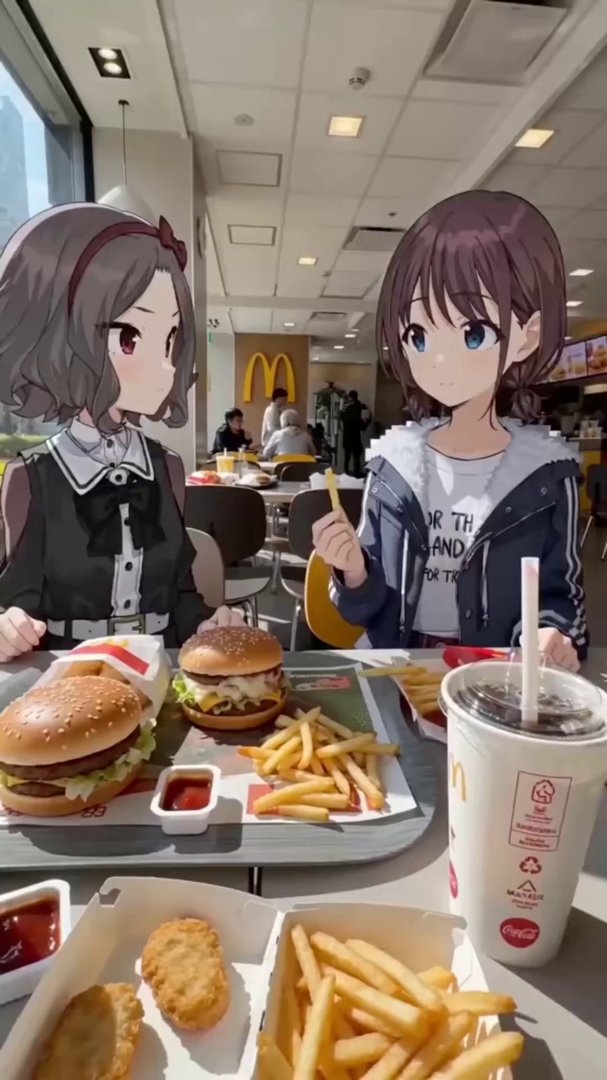 Seedance V2's Early Promise: High-Quality AI Video Generation
Seedance V2 is not perfect, and people will need clever references and good prompts, but having this quality and these possibilities so …
Seedance V2's Early Promise: High-Quality AI Video Generation
Seedance V2 is not perfect, and people will need clever references and good prompts, but having this quality and these possibilities so …
 Veo 3 Video by @IqraSaifiii
SeeDance 2 is the best model for anime I have never seen this level of smoothness with one attempt This is so …
Veo 3 Video by @IqraSaifiii
SeeDance 2 is the best model for anime I have never seen this level of smoothness with one attempt This is so …
![[Seedance 1.5 Pro] Title: From Broke to Rich in 12 Seconds
Format: 9:16 vertical
Duration: 12 seconds
Style: cinematic, realistic, slightly comedic tone
Characters must](https://media.ulazai.com/prompt_thumbnails/2026/02/thumb_748df614-e0c4-468c-bac2-91e5d3d2be87.jpg) [Seedance 1.5 Pro] Title: From Broke to Rich in 12 Seconds
Format: 9:16 vertical
Duration: 12 seconds
Style: cinematic, realistic, slightly comedic tone
Characters must
Title: From Broke to Rich in 12 Seconds Format: 9:16 vertical Duration: 12 seconds Style: cinematic, realistic, slightly comedic tone Characters must …
[Seedance 1.5 Pro] Title: From Broke to Rich in 12 Seconds
Format: 9:16 vertical
Duration: 12 seconds
Style: cinematic, realistic, slightly comedic tone
Characters must
Title: From Broke to Rich in 12 Seconds Format: 9:16 vertical Duration: 12 seconds Style: cinematic, realistic, slightly comedic tone Characters must …
![[Seedance 1.5 Pro] a baby running in the mountains.](https://media.ulazai.com/prompt_thumbnails/2025/12/thumb_d753c35a-2acc-42d0-8a2b-db7247fc5b97.jpg) [Seedance 1.5 Pro] a baby running in the mountains.
a baby running in the mountains.
[Seedance 1.5 Pro] a baby running in the mountains.
a baby running in the mountains.
Pick a model
Lowest price per run. Length, quality and audio change the final cost. Credit packages
Gemini Omni Flash 1.1
Fast multimodal video from prompts, images, video, saved voices and character IDs
90 cr 4s · ~EUR 0.82
Wan 3.0 Video
Text, frames, image, video, audio, document and link references in one model (2-30s, 480p/720p/1080p)
20 cr 2s · ~EUR 0.18
Seedance 2.5
Up to 30 seconds with precise frame control and up to 50 multimodal references
112 cr 4s · ~EUR 1.02
MiniMax H3
2K text-to-video with native stereo audio (4-15s)
146 cr 4s · ~EUR 1.33
Kling V3 Turbo
Fast text-to-video generation (5s/10s, 720p/1080p)
90 cr 5s · ~EUR 0.82
Veo 3.1 Lite
Newest Veo 3.1 low-cost mode for text/image-to-video
40 cr 8s · ~EUR 0.36
Sora 2
Sora 2 (10s/15s)
80 cr 10s · ~EUR 0.73
Grok Imagine Video
xAI Grok text/image to video
10 cr 6s · ~EUR 0.09
HappyHorse 1.1 Video
Text-to-video generation (3-15s, 720p/1080p)
99 cr 3s · ~EUR 0.90
PixVerse V6
Text-to-video with native audio, multi-clip prompts and 1-15s output
4 cr 1s · ~EUR 0.04
Wan 3.0 Video Prime
Same references as Wan 3.0 Video, faster end to end (2-30s, 480p/720p/1080p)
30 cr 2s · ~EUR 0.27
Seedance 2.0
Text, first/last-frame, and multimodal reference video
76 cr 4s · ~EUR 0.69
Seedance 2.0 Fast
Faster Seedance 2 workflow with the same multimodal options
62 cr 4s · ~EUR 0.56
Gemini Omni Video
Golden premium multimodal video with images, video, voice and character IDs
90 cr 4s · ~EUR 0.82
Seedance 2.0 Mini
Lower-cost Seedance 2 workflow with text, frames, multimodal references and audio
24 cr 4s · ~EUR 0.22
Kling 3.0
3-15s video, audio and multi-shot
60 cr 3s · ~EUR 0.55
What is the UlazAI AI Video Prompt Directory?
This directory is a searchable library of community-tested AI video prompts for the models currently available in UlazAI. It now reflects newer routes like Seedance 2, Kling 3.0, Wan 2.7, Hailuo 2.3, plus established workflows for Veo 3.1, Sora 2, and Grok Imagine.
How to Use These AI Video Prompts
- Search by subject, style, model name, or prompt tag
- Open the prompt detail page and copy the prompt text
- Choose text-to-video, image-to-video, reference-video, or audio-capable generation
- Check credit estimates before rendering and iterate inside the matching studio
Model choice matters. Use Seedance 2 for multimodal references, Kling 3.0 for motion-heavy clips, Veo 3.1 for polished prompt fidelity, and Wan/Hailuo routes when your input type or budget fits better.
Popular Categories
- Sora AI757
- Fantasy227
- Memes & Comedy191
- Action134
- Nature82
- Portrait74
- Brand Marketing73
- Product Showcase59
- Technology53
- Abstract47
- Music & Dance34
- Lifestyle Vlogs28
Related Prompt Resources
- Seedance 2 guide for multimodal image, video, and audio references
- Kling 3.0 guide for current cinematic video workflows
- How to access Veo 3.1 and choose the right Google video route
- Prompt assistant for generating and refining draft prompts
- Video API documentation for supported model routes
- AI prompt assistant for fast semantic prompt expansion
External references: Google DeepMind Veo, OpenAI Sora overview, OpenAI API docs.
Frequently Asked Questions About the UlazAI Prompt Directory
How the directory, prompt assistant, model routes, and credit estimates work together.
What is the UlazAI Prompt Directory?
It is a searchable collection of 1945+ free AI video prompts for Seedance 2, Veo 3.1, Sora 2, Kling 3.0, Grok, Wan, and Hailuo. Copy a prompt, adapt it, and open the matching model in Video Studio.
How can I create better prompts?
Use the AI Prompt Assistant to expand rough ideas into structured prompt drafts. Then adapt the prompt for the selected model: reference-heavy prompts fit Seedance 2 or Wan R2V, motion-heavy prompts can fit Kling 3.0, and polished cinematic prompts often fit Veo 3.1.
Which model should I choose?
Start with your input type. Text-only ideas can go to Veo 3.1, Sora 2, Kling 3.0, Seedance 2, or Wan 2.7 T2V. Image-to-video prompts fit Seedance 2, Veo 3.1, Wan 2.7 I2V, Hailuo, Grok, and Kling. Audio or multimodal reference workflows are strongest candidates for Seedance 2 or Kling routes.
How do I use a prompt from the directory?
- Search by model, theme, or category.
- Open a prompt detail page and copy the prompt.
- Pick the right UlazAI model route for the input type.
- Review credits, duration, aspect ratio, and quality settings.
- Render, compare output, and save the best version.
Are the prompts free?
Yes. The directory prompts are free to browse, copy, and adapt. Rendering videos uses UlazAI credits; each model lists a starting credit estimate before you open a studio.
Can I submit my own prompts?
Yes. Submit high-quality prompts with clear output intent and, where possible, an example video. Good submissions improve the directory and make it easier for other creators to understand which prompt patterns work across current models. Share a prompt.
🎁
Wait! Don't Leave Empty-Handed
Check your current welcome credits before generating
Model prices and signup requirements are shown in your account
🎬
Choose a model
Review its current settings
⚡
Live job status
Processing time varies
🌍
Model availability
Check from your location
1509 visitors used the directory today
No Credit Card
Current Availability
Cancel Anytime
Find a prompt by model, scene and camera move
Search the directory for the result you want, then open a prompt that matches the available model and input type. Copying a cinematic line into the wrong studio can fail even when the wording looks strong.
Read the full prompt before using it. Replace subject and brand details, but keep the shot structure, timing and camera instructions together.