UlazAI - AI Image & Video Tools
New in Image Studio
Grok Imagine Image 2.0 lets you point at the part of the image you want changed.
Most image editing is a gamble: you describe the change, the model redraws everything, and you find out afterwards what else moved. This model first hands you a list of everything it sees in your image, numbered and named in plain language: 0 green sofa, 6 blue vase, 7 floor lamp. You pick the numbers you want changed, write the prompt, and only those regions get repainted.
- Per image
- 5 credits
- Segment map
- 0 credits
- Aspect ratios
- 5
The short version
Generate or upload an image, ask for the segment map, pick the numbers you want changed, describe the change. The map is not a picture you have to squint at, it is a list of named regions, and it costs nothing. The regions you did not pick come back untouched, pixel for pixel.
The edit flow, in three steps
This is the part worth learning. It takes about a minute the first time, and after that you stop rerolling whole images to fix one corner.
-
Step 1
Get an image on the table
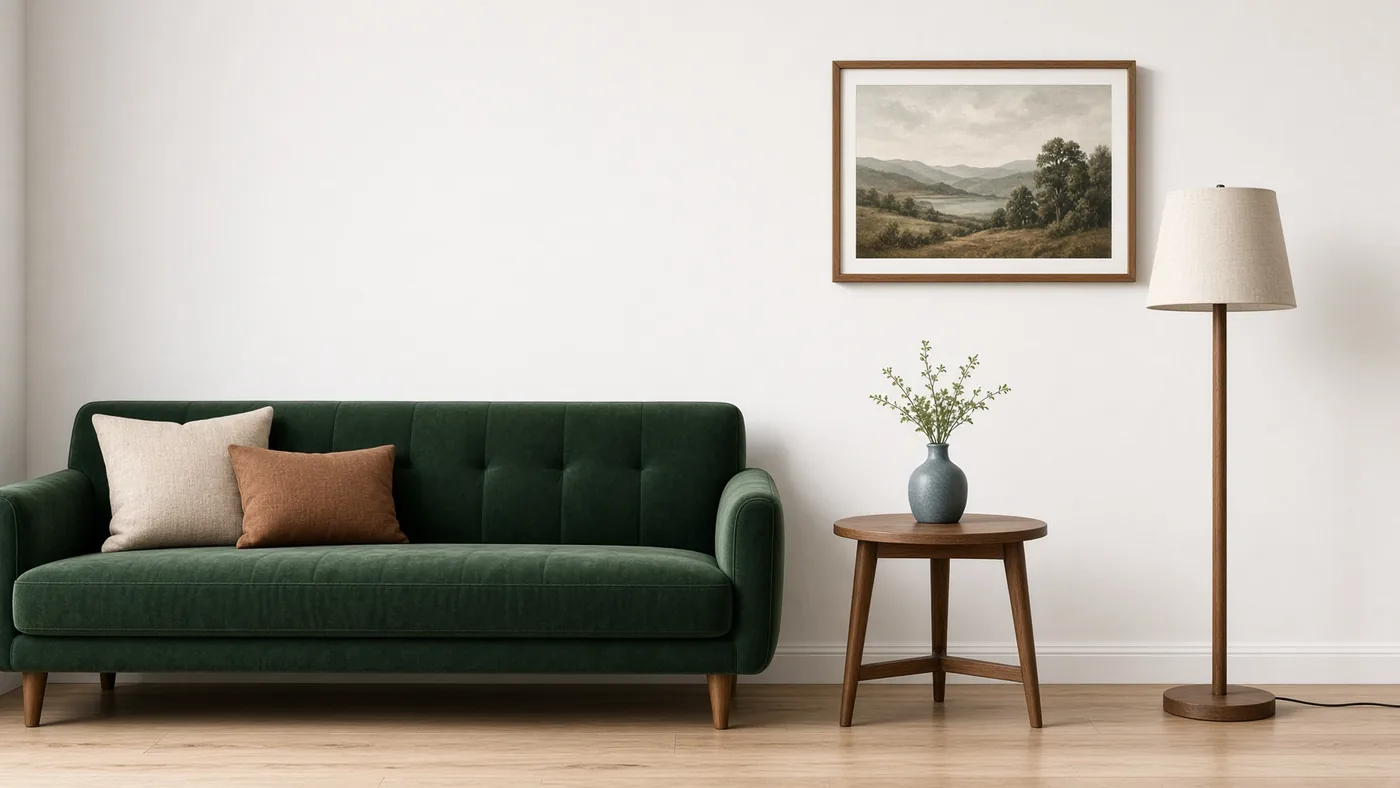
Write a prompt, choose an aspect ratio, generate. That is 5 credits. Already have the image, from a camera, a client, or another model? Upload it instead and skip straight to step 2.
-
Step 2
Ask for the segment map
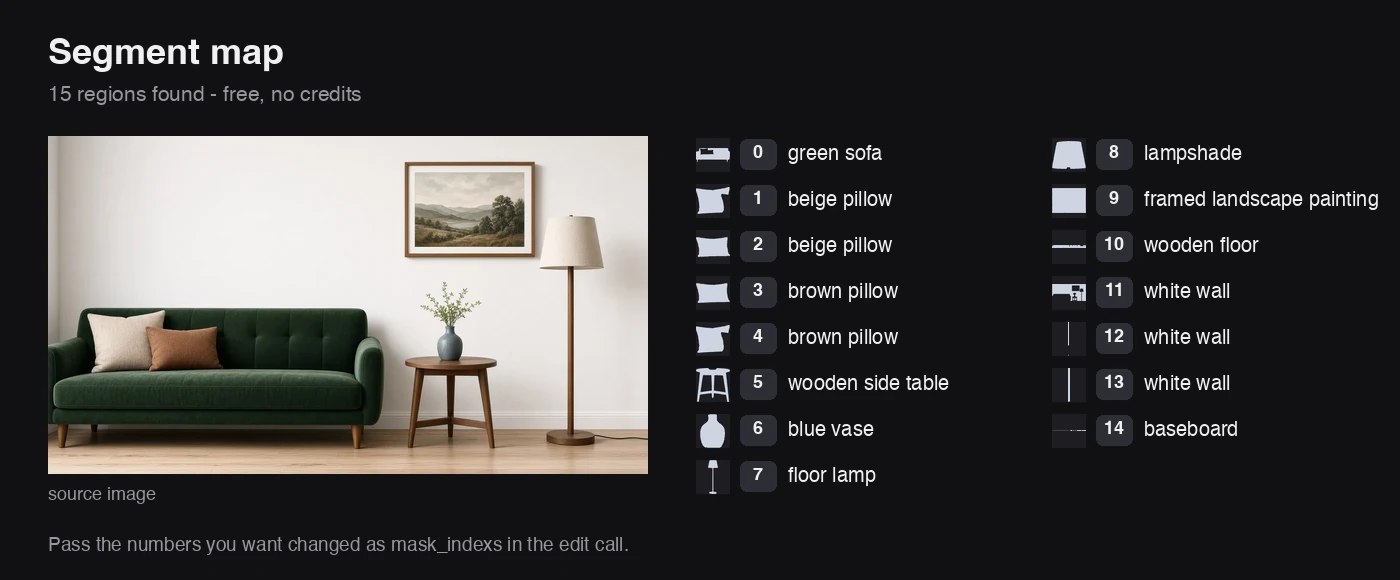
You do not get a coloured overlay to decode. You get a list. The model breaks the image into regions and returns each one with a number, a name in plain language, and a cut-out silhouette of that region. The living room shot here came back as 15 of them:
0 green sofa,1 beige pillow,5 wooden side table,6 blue vase,9 framed landscape painting, down to14 baseboard.The names are the part that saves you time. You are not matching numbers to spots in a picture and hoping you picked the right one. You want the sofa changed, you read "green sofa" on the list and take number 0. And the whole step costs 0 credits, so there is no reason to guess at any of it.
-
Step 3
Name the numbers, write the change
Pass the numbers you picked as
mask_indexsand describe what should be there instead. In the run shown here that was a single number, 0, with a prompt to repaint the sofa rust orange. The sofa changed. The lamp, the side table, the blue vase, the four pillows, the painting and the wooden floor came back pixel for pixel identical. An edit costs 5 credits, the same as a generation, and you can run it again on a different set of numbers.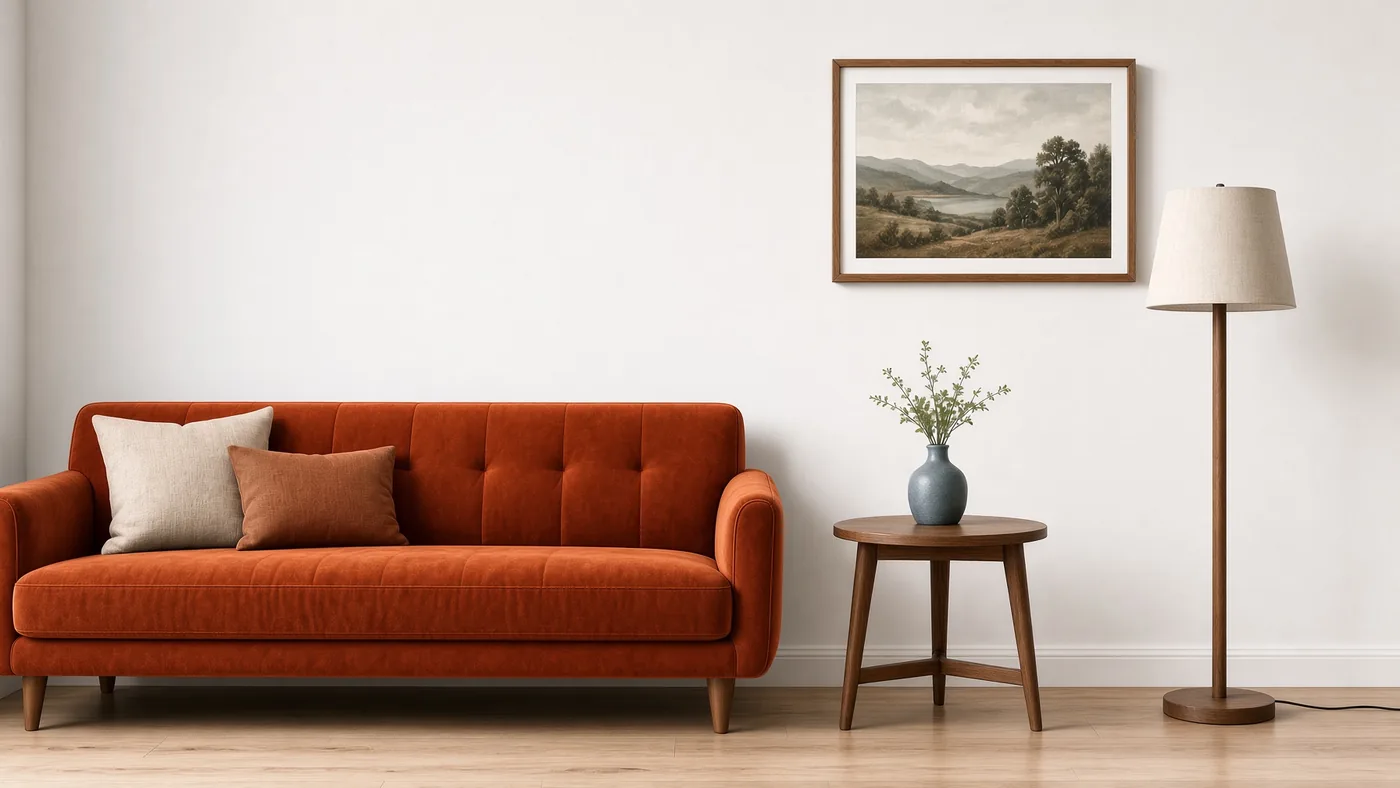
Where picking regions actually pays off
Not every edit needs this. These are the jobs where redrawing the whole frame costs you the thing you were trying to keep.
One product, twelve backgrounds
Select the background regions, leave the product region alone. The bottle keeps its label, its shape and its highlights across the whole set.
Fixing the one thing that went wrong
The scene is right but the hands are mangled or the text on the sign is nonsense. Repaint that region instead of rerolling and losing the composition you liked.
Ad variants that stay on brand
Swap the jacket colour, the season outside the window, or the props on the desk, while the model, the lighting and the framing stay identical between variants.
Removing what should not be there
A stray logo, a passer-by, a power line across the roof. Pick the region, describe what belongs there, and the rest of the shot is untouched.
Thumbnails from one base shot
Keep the face and pose fixed, change the backdrop and the props per variant. Test which one gets clicks without changing three things at once.
Retouching a photo you already have
The segment map takes an uploaded image too, so a real photo gets the same named region list and goes through the same three steps.
Parameters per step
Three calls, each with its own inputs. Image Studio wires them together, so you only ever fill in what the step needs.
| Step | Required | Options | Cost |
|---|---|---|---|
| Text to image | prompt and aspect_ratio |
Aspect ratio: 1:1, 2:3, 3:2, 16:9, 9:16 | 5 credits |
| Segment map | Either a generated image or an uploaded one | Returns a list of regions, each with a number, a plain-language name and a cut-out silhouette | 0 credits |
| Edit | prompt plus the image you mapped |
mask_indexs: the region numbers you picked off the segment list |
5 credits |
What it costs
One number to remember: 5. Generating costs 5 credits, editing costs 5 credits, and looking at the map in between costs nothing.
| Action | Credits | Notes |
|---|---|---|
| Generate an image | 5 | Per image, any of the five aspect ratios. |
| Segment map | 0 — free | Ask for it as often as you like. It never costs a credit. |
| Edit selected regions | 5 | Per edit, however many regions you select at once. |
| Older Grok Imagine | 8 | The previous model, still in Image Studio. No segment editing. |
A full round of generate, map, edit lands at 10 credits: 5 for the image, 0 for the map, 5 for the edit.
Made with Grok Imagine Image 2.0
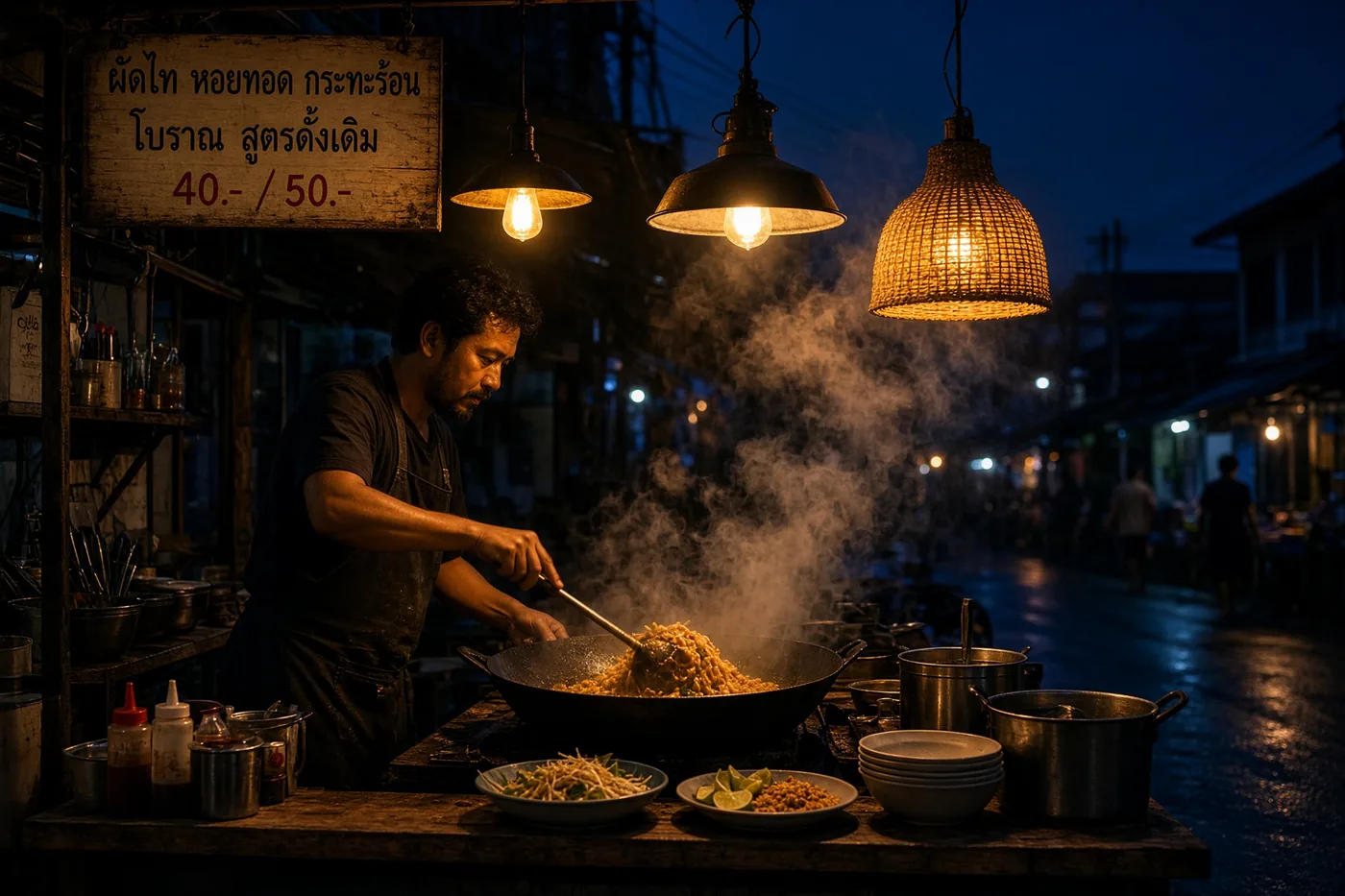
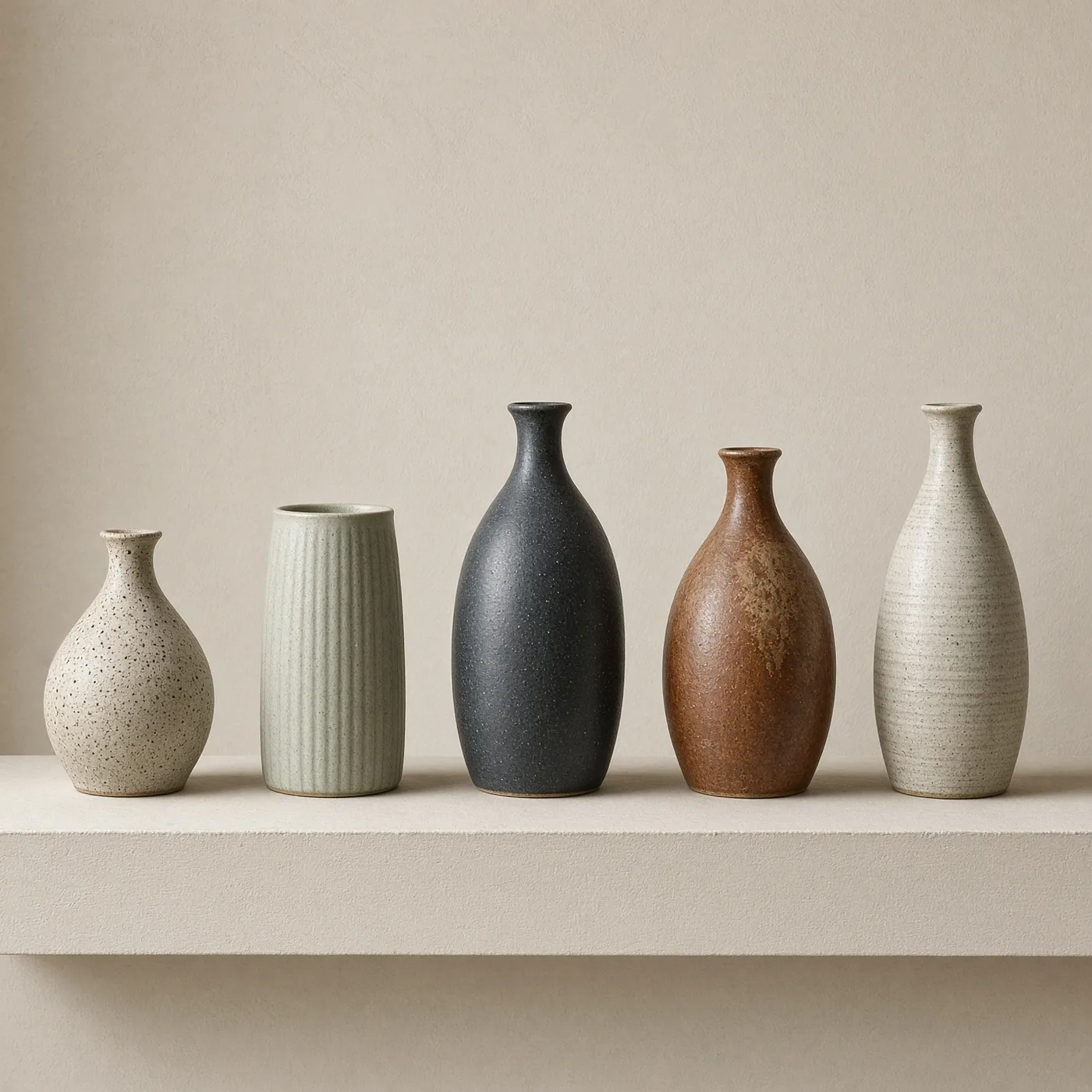
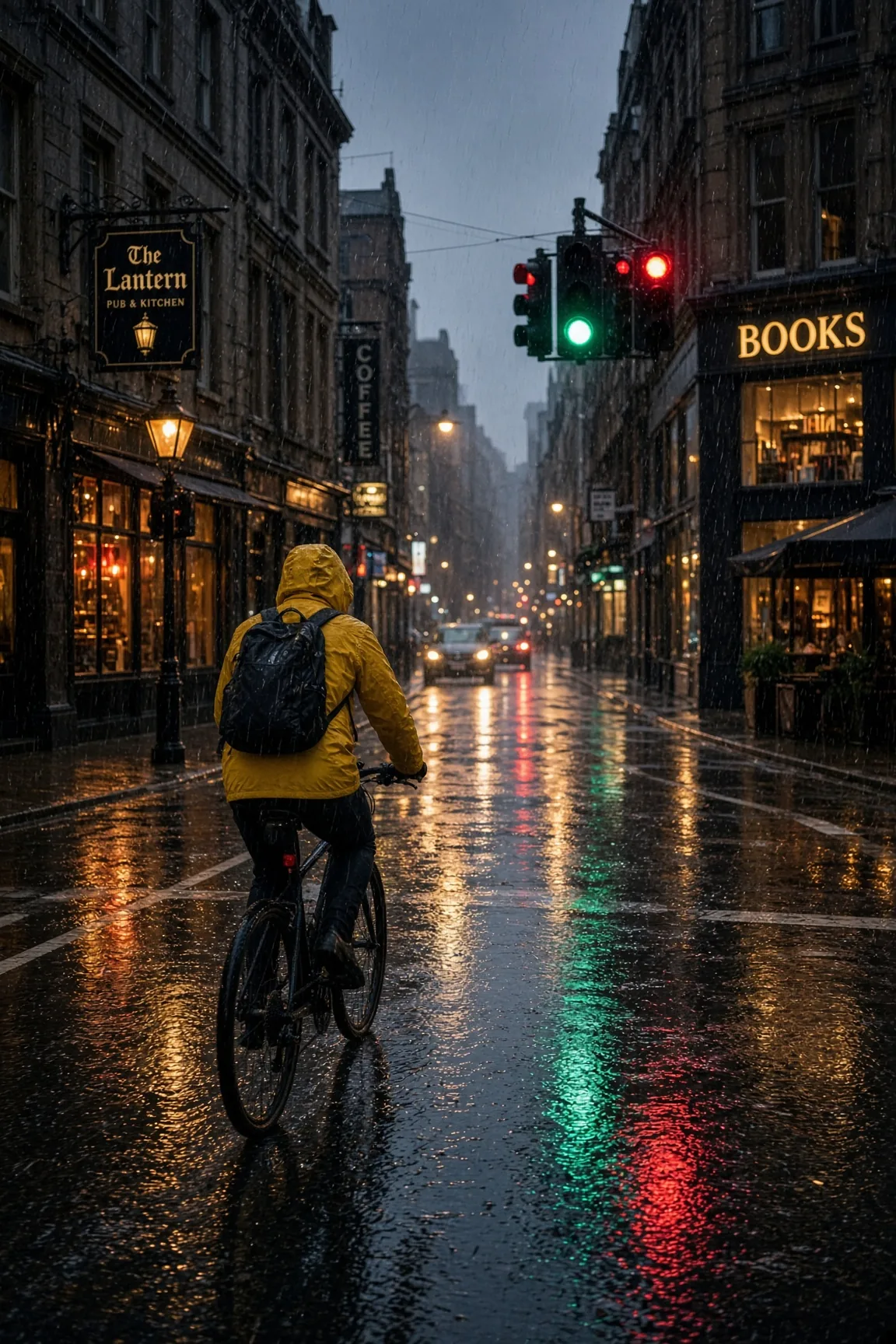
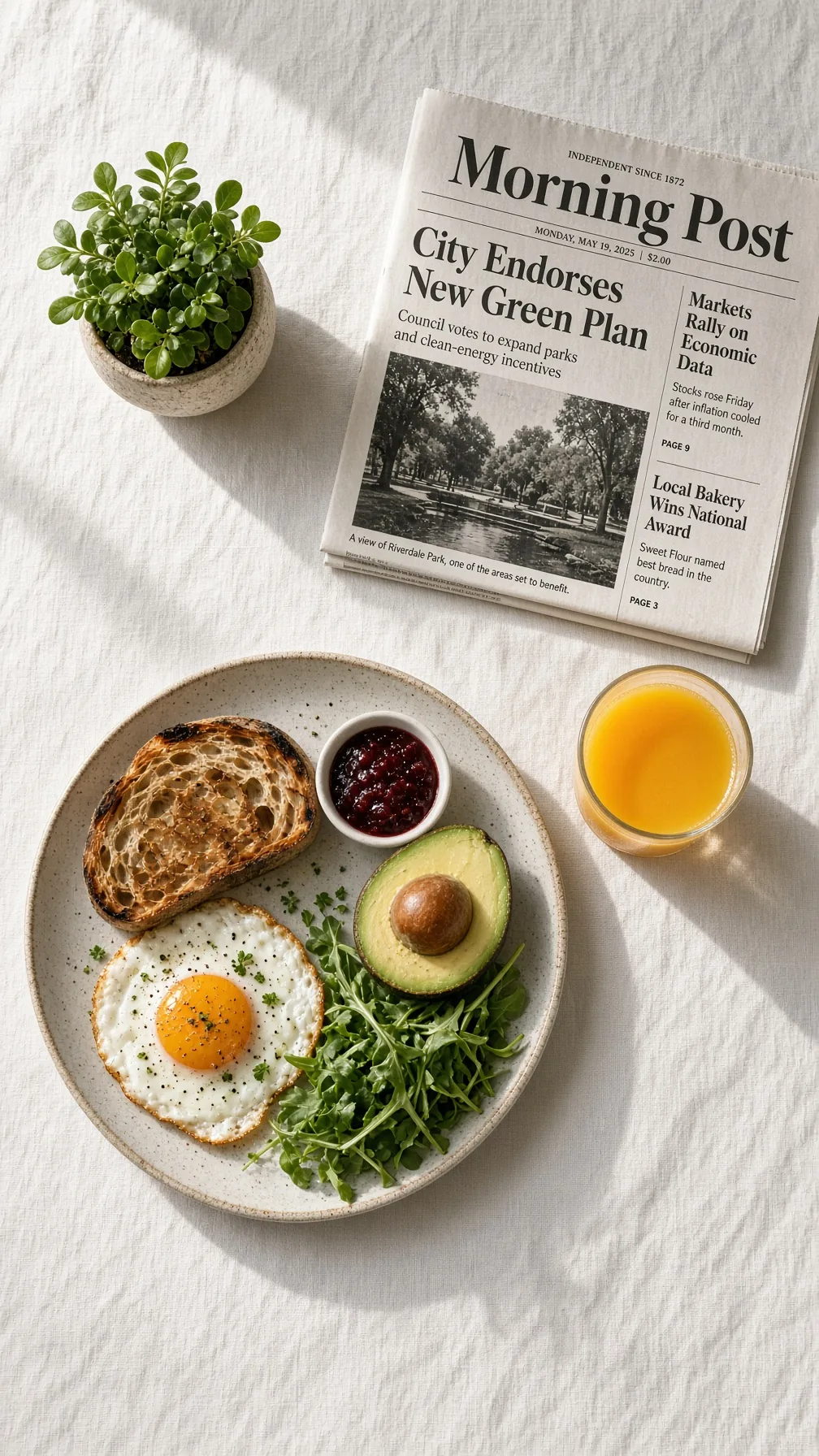
Four outputs from the model, across the aspect ratios you can pick.
2.0 or the older Grok Imagine?
The older Grok Imagine model is still in Image Studio at 8 credits per image. Version 2.0 costs 5 credits and adds segment editing, so for new work there is not much of an argument left for the old one. Keep using it if you have prompts tuned to it and you like what it gives you; otherwise start on 2.0.
Questions people ask
What does a segment map do?
It returns a list of the regions in your image. Every region gets a number, a name in plain language and a cut-out silhouette, so a living room comes back as things like "0 green sofa", "6 blue vase" and "7 floor lamp". You read the names, pick the numbers you want changed, and pass those to the edit step. It costs 0 credits, so you can request one for any image you plan to edit.
What does Grok Imagine Image 2.0 cost in UlazAI?
5 credits per generated image and 5 credits per edit. The segment map is free at 0 credits.
How is this different from just prompting for a new image?
A normal edit prompt asks the model to redraw the whole image and hope the parts you liked survive. Here you read a list of named regions, select the numbers you want repainted, and everything outside those regions stays as it was.
Can I edit an image I made somewhere else?
Yes. The segment map accepts either an image you upload or an image you generated earlier in Image Studio. From there the edit step works the same way.
Which aspect ratios can I generate?
Five: 1:1, 2:3, 3:2, 16:9 and 9:16. You pick one per generation.
Should I still use the older Grok Imagine model?
Grok Imagine 2.0 costs 5 credits against 8 credits for the older Grok Imagine, and only 2.0 has segment editing. The older model stays available in Image Studio if you already have a prompt setup that works there.
Make one image, then change one thing about it.
That is the whole demo. Generate for 5 credits, pull the free segment map, repaint a region, and see how much of your image survives.